Appearance
Single Sign-On with Okta
This guide demonstrates how to configure single sign-on with Okta.
Okta configuration
Log in to your organization’s control panel on Okta.
Create app integration
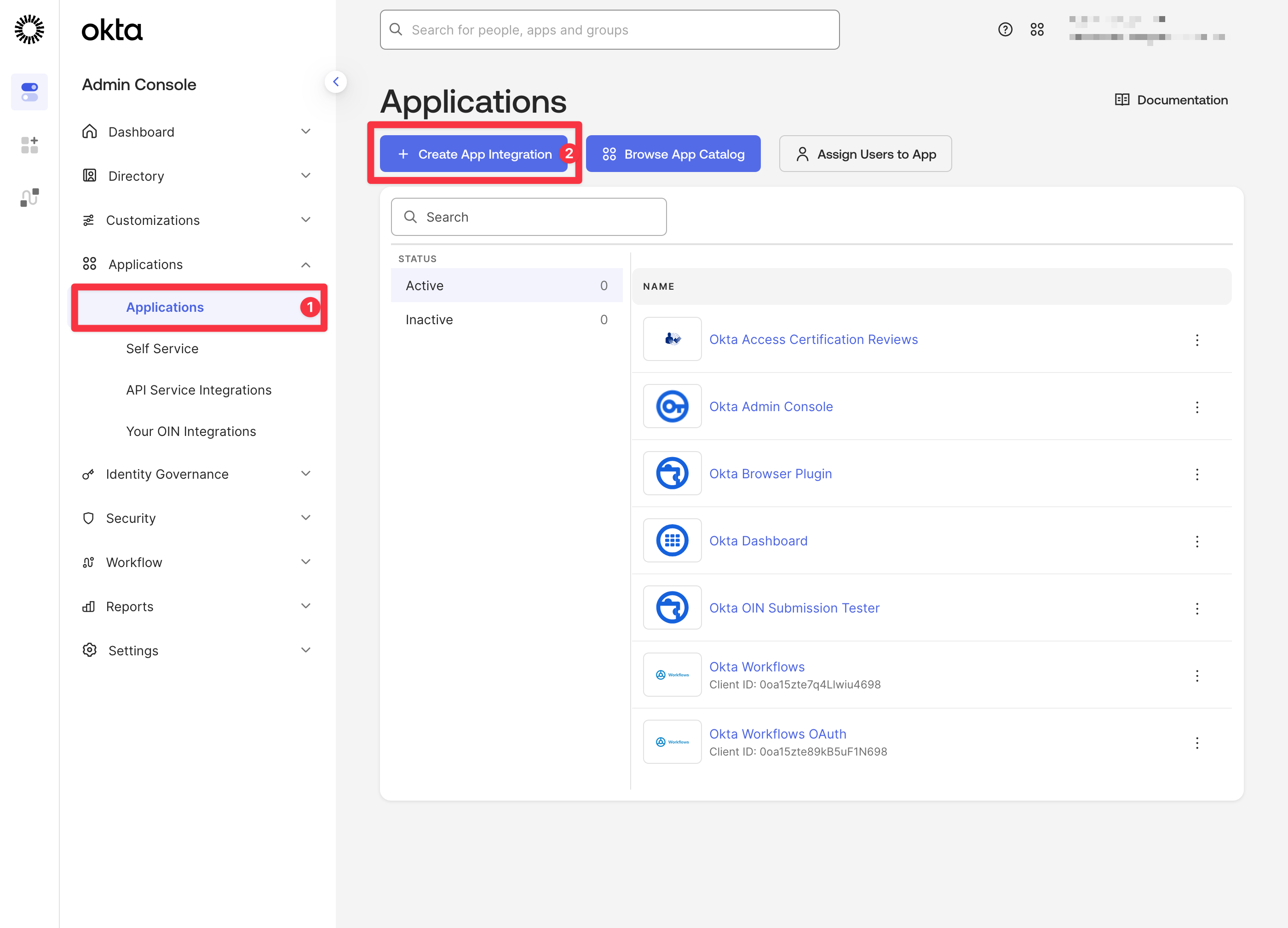
- In the main navigation panel, expand the Applications section, then click Applications.
- On the Applications page, click Create App integration.
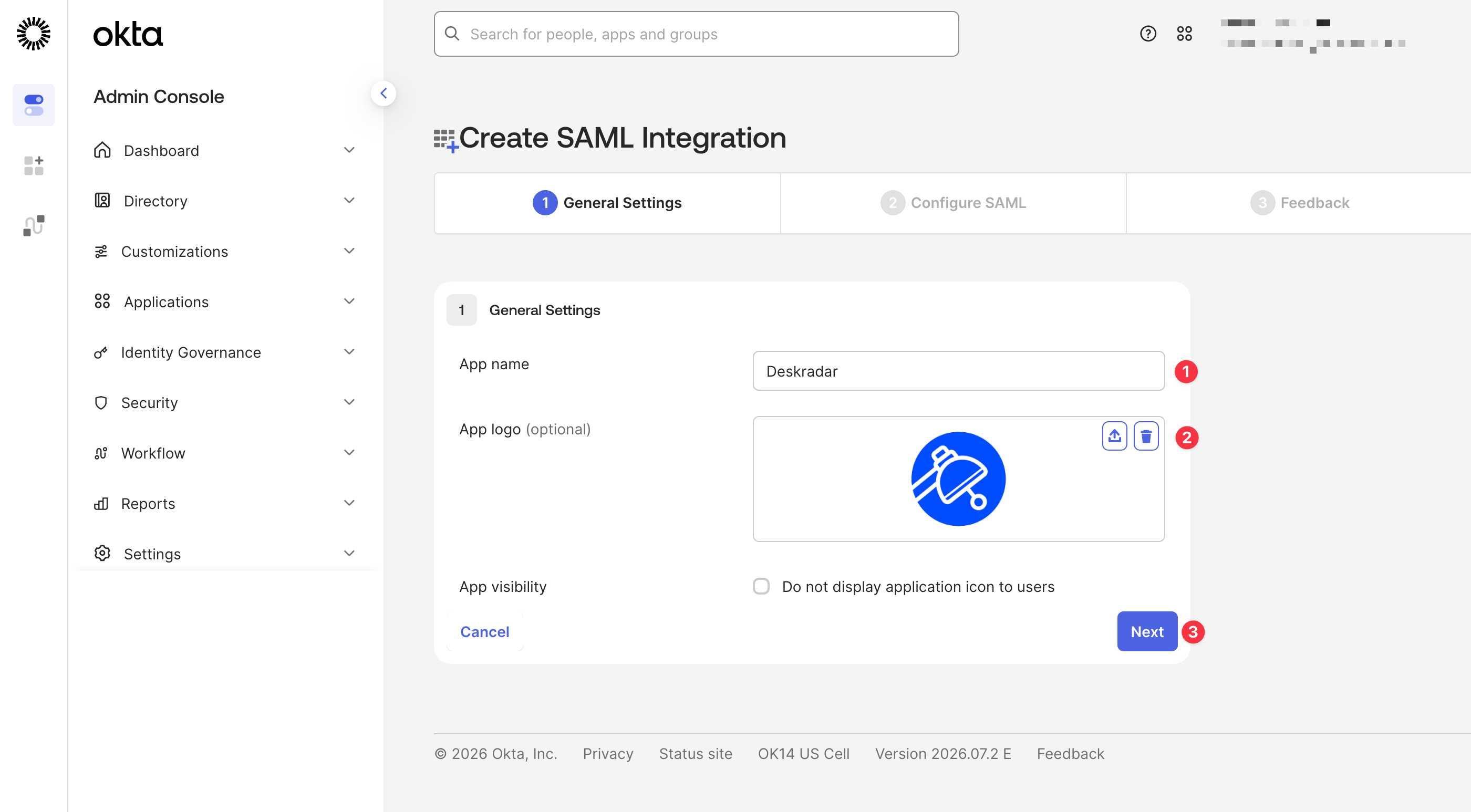
Enter Deskradar in the App name field
Upload the Deskradar logo

Click Next
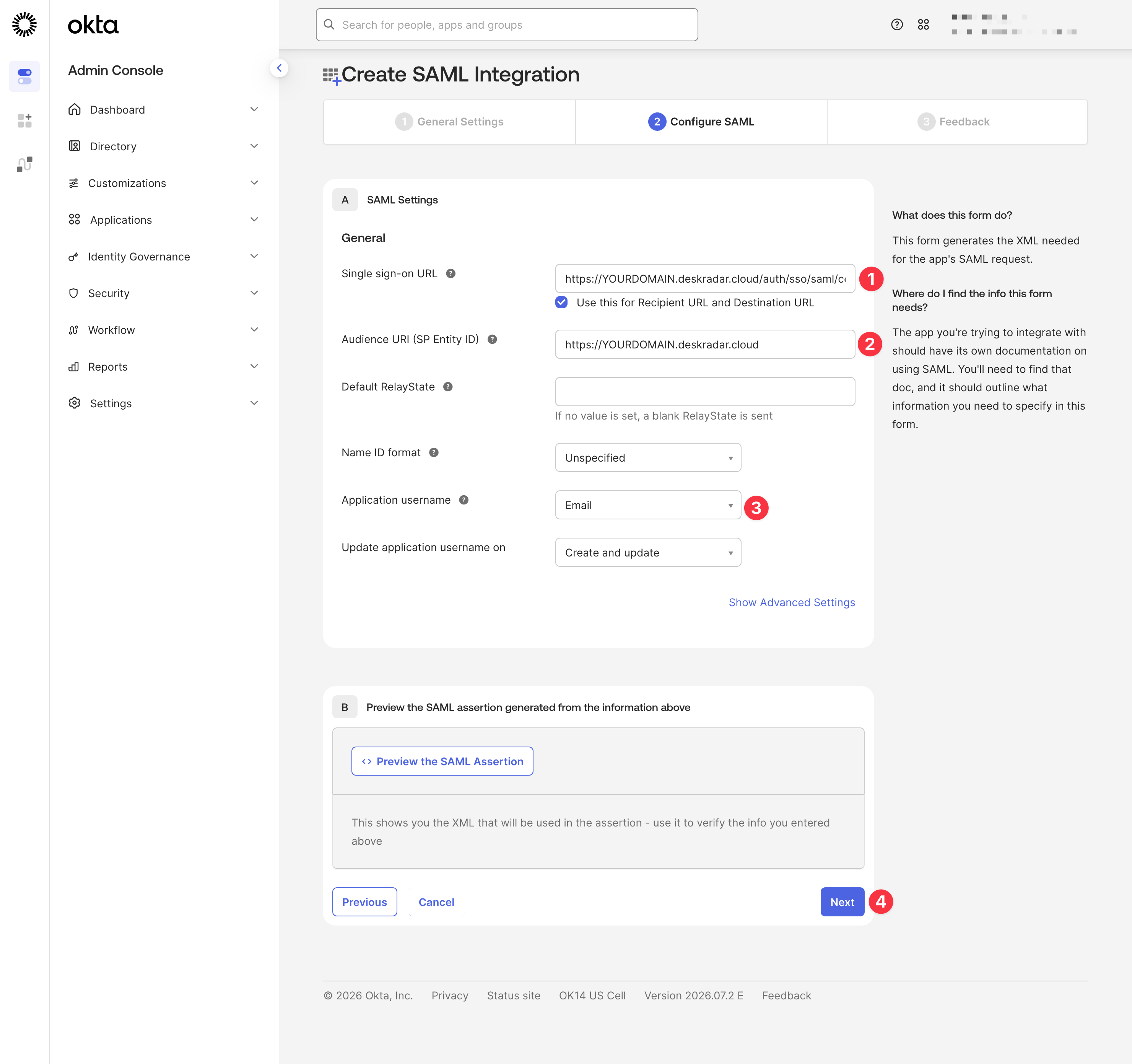
In the following values, replace YOURDOMAIN with your Deskradar instance domain.
- In the Single sign-on URL field, enter
https://YOURDOMAIN.deskradar.cloud/auth/sso/saml/consume - In the Audience URI (SP Entity ID) field, enter
https://YOURDOMAIN.deskradar.cloud - In the Application username dropdown, select Email.
- Click Next.
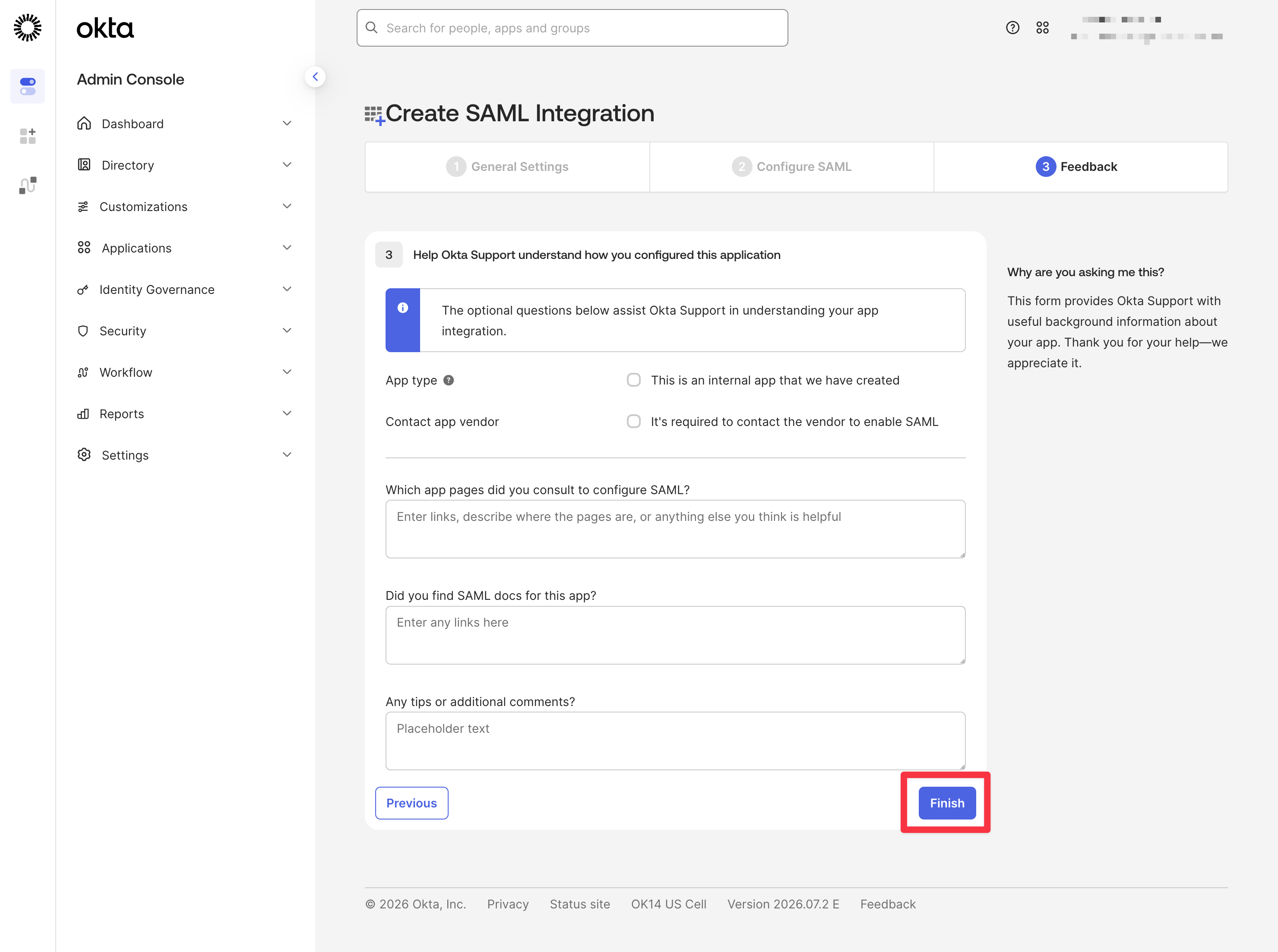
Click Finish.
Identity provider settings
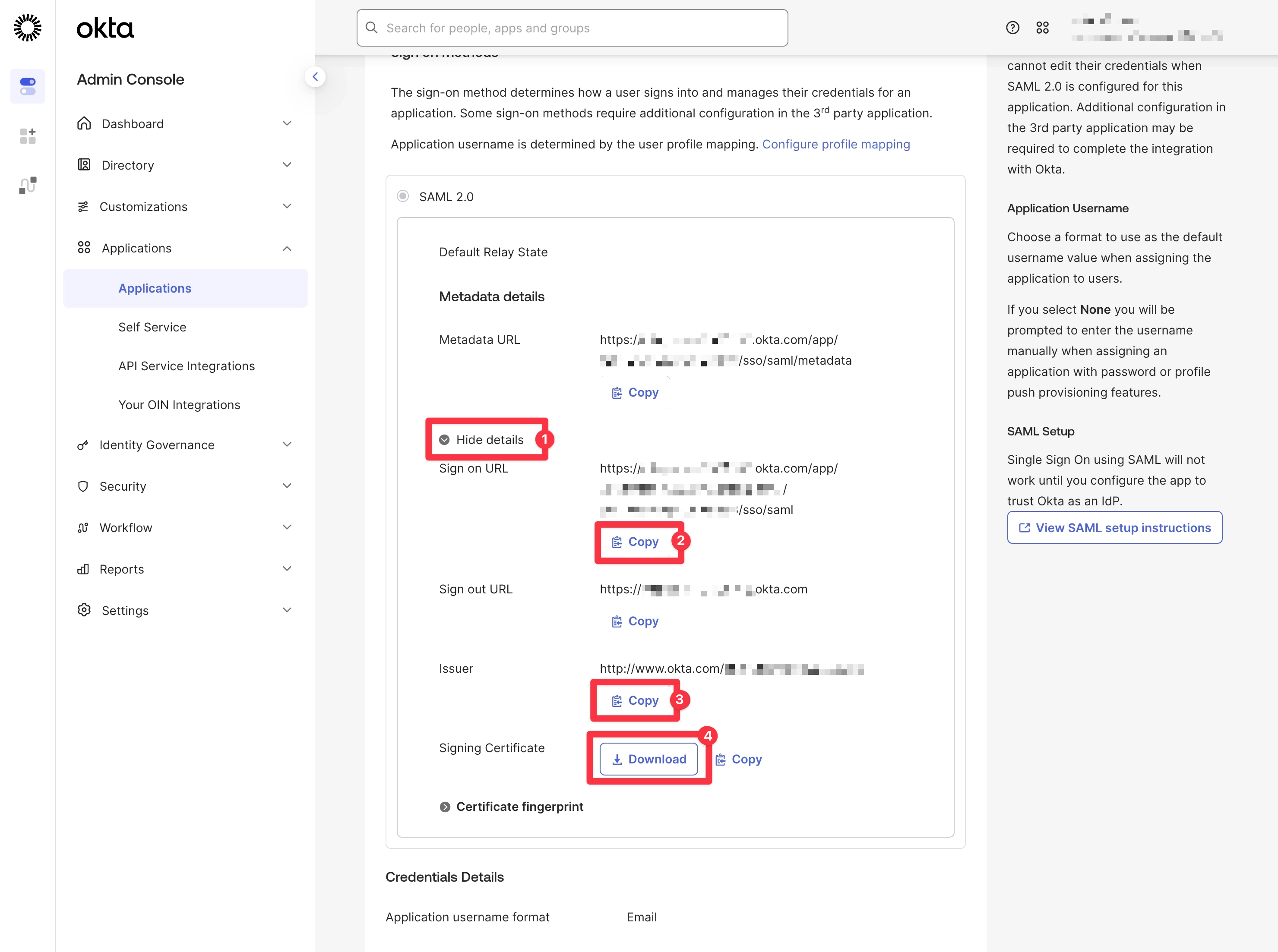
After creating the app integration, you are taken to the application details page.
Now save the information you need for Deskradar configuration.
- Click Show details to expand the details section.
- Copy Sign on URL.
- Copy Issuer.
- Download Signing Certificate as a file.
Configure attributes mapping
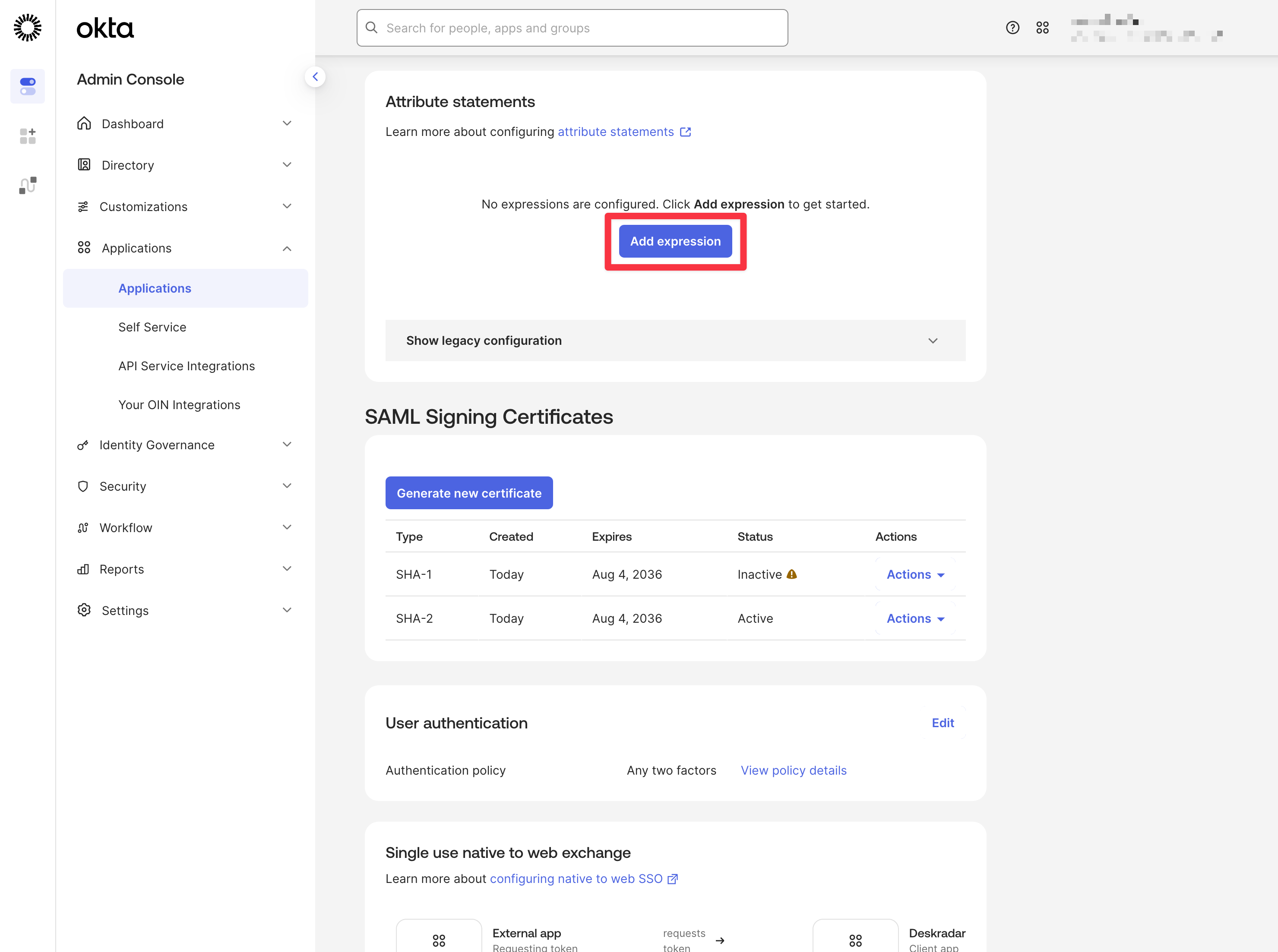
Scroll down to the Attributes section.
Click Add expression.
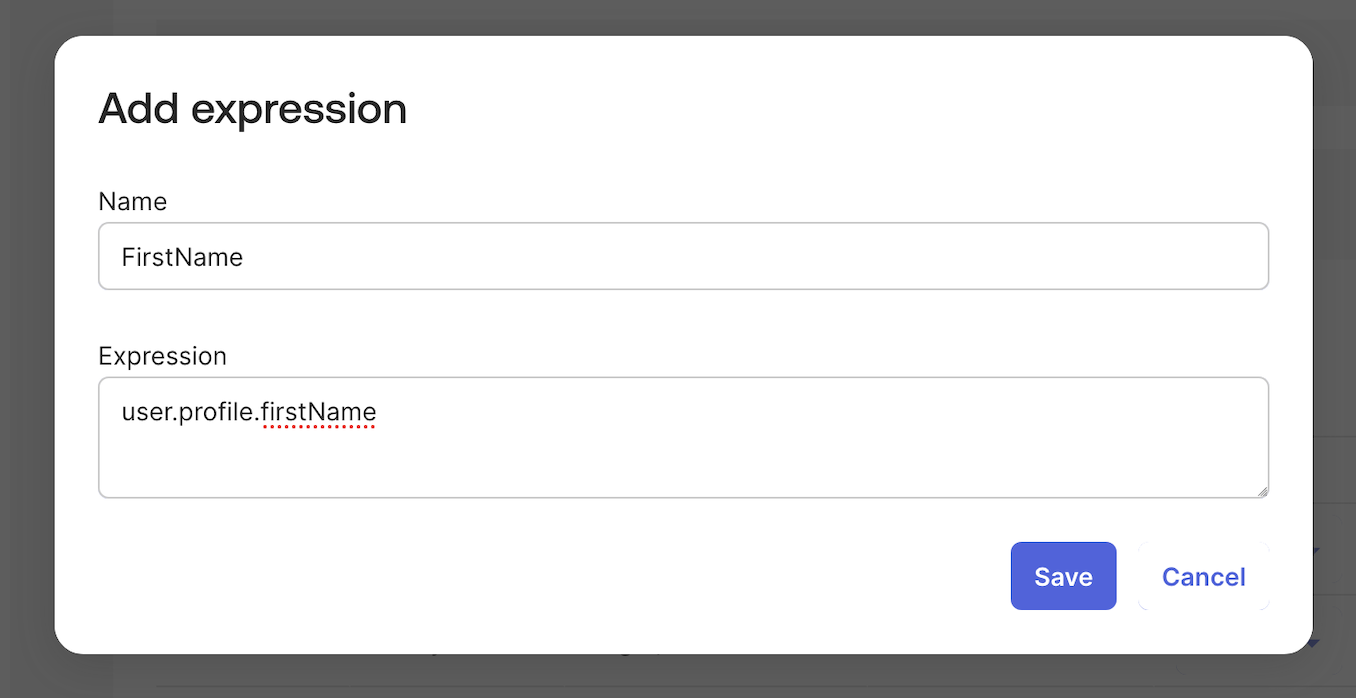
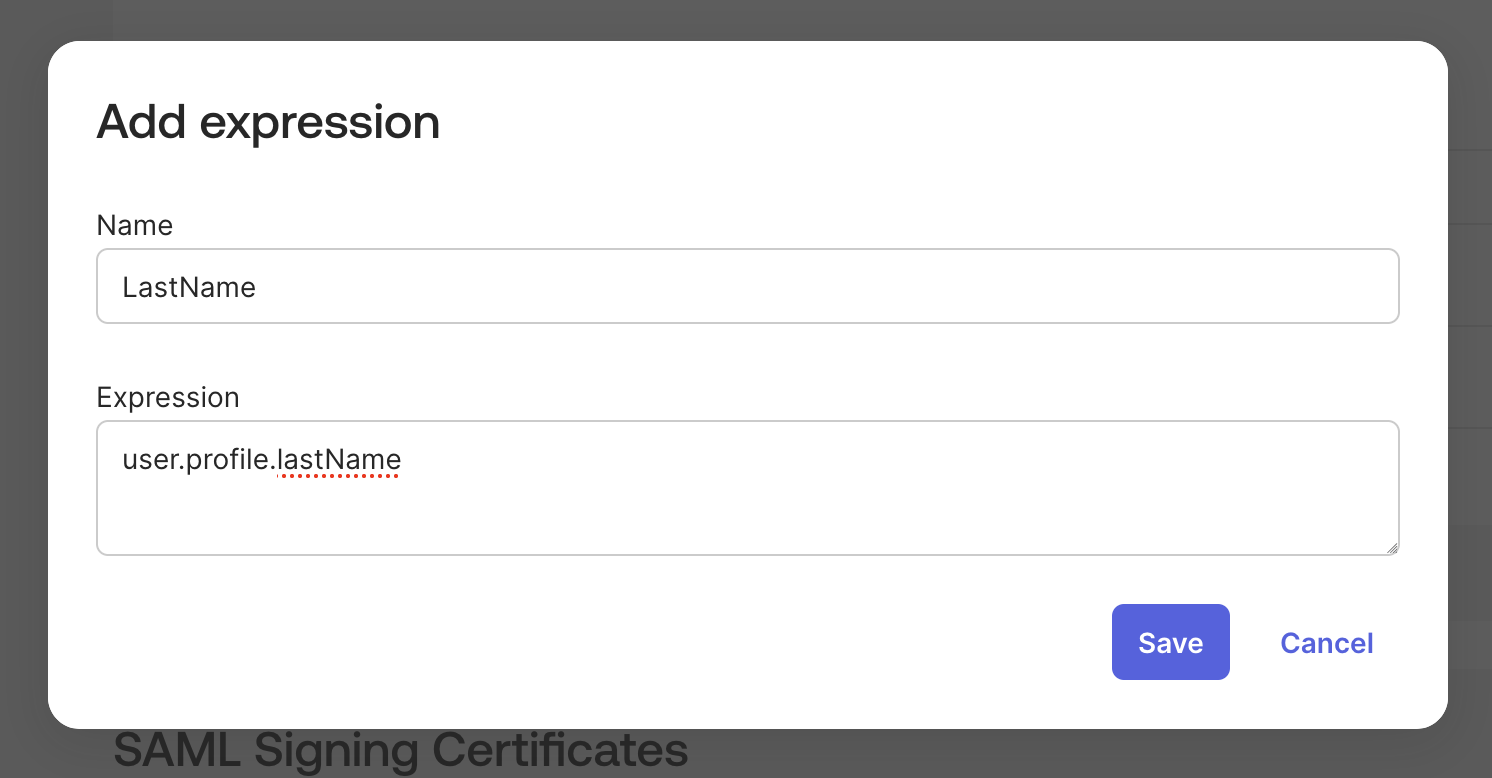
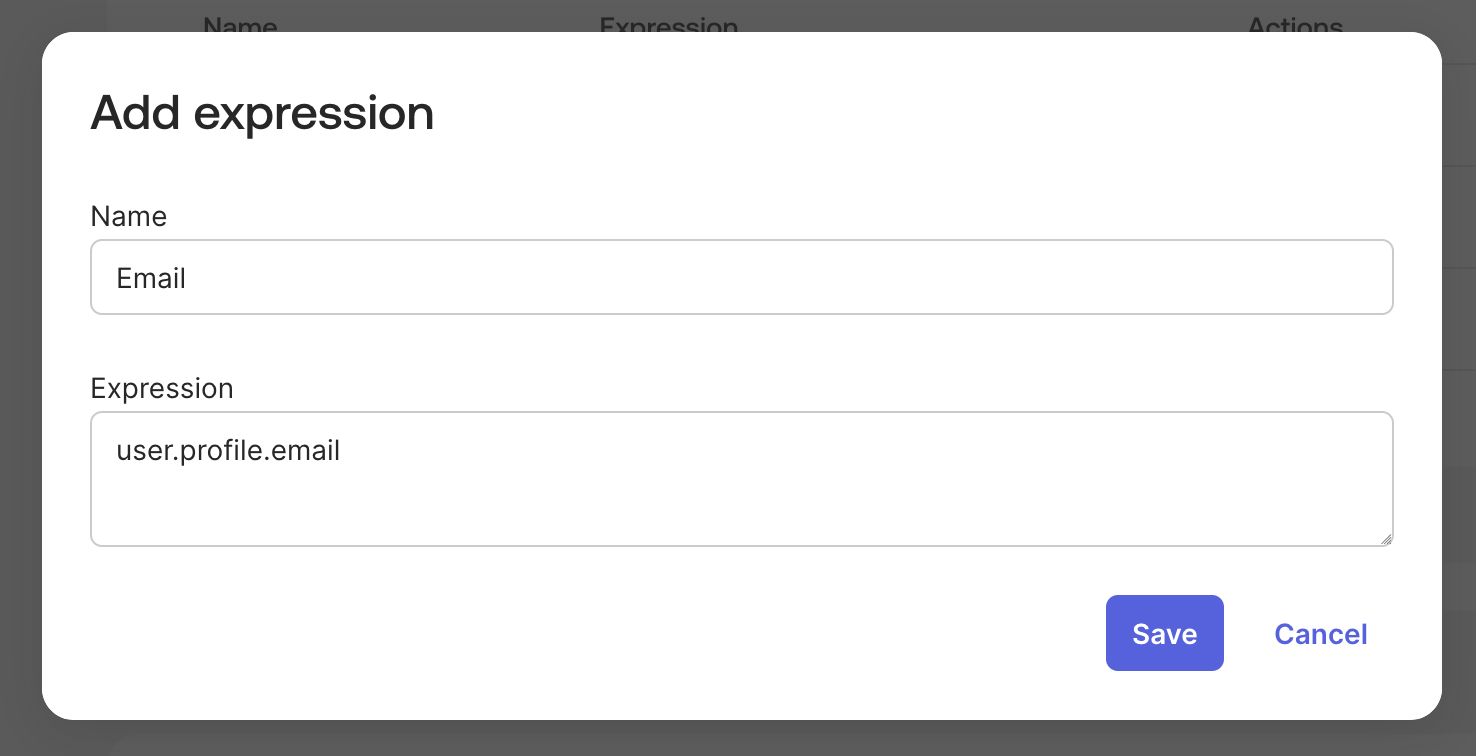
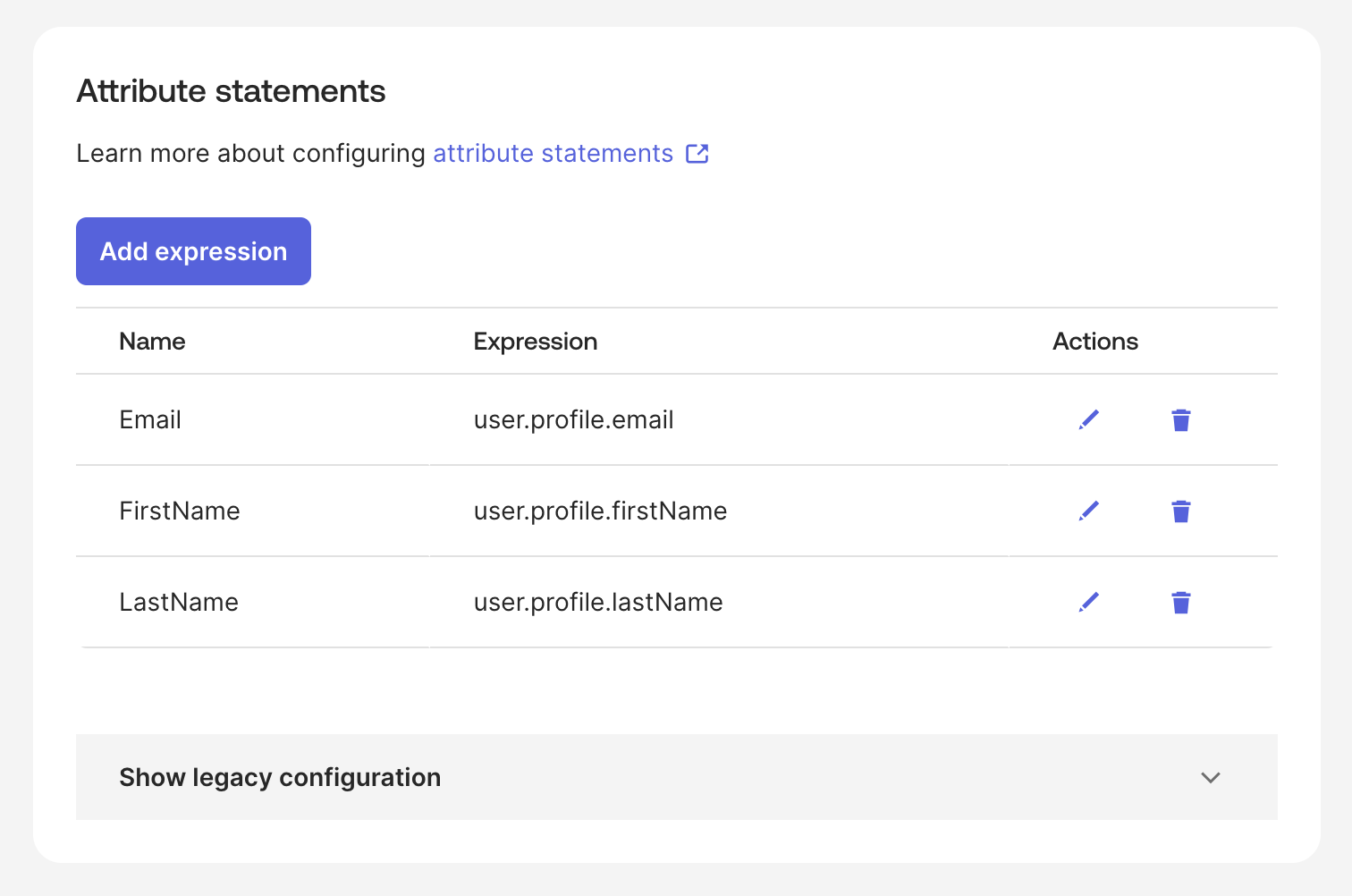
The three attribute mapping expressions to configure:
| Name | Expression |
|---|---|
user.profile.email | |
| FirstName | user.profile.firstName |
| LastName | user.profile.lastName |
Set up user assignments
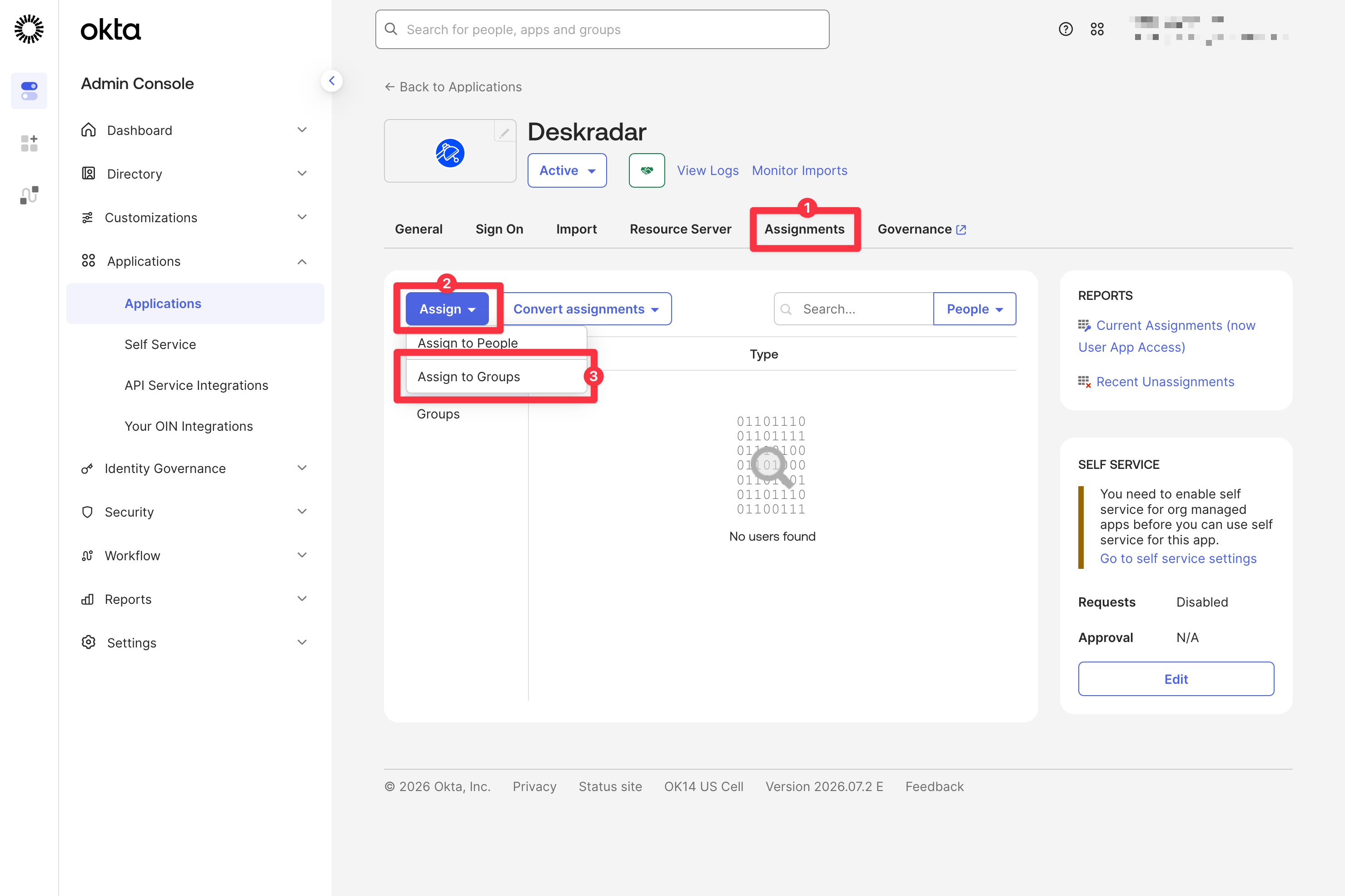
- In the top navigation panel, click Assignments.
- Click Assign to open the dropdown.
- Click Assign to Groups.
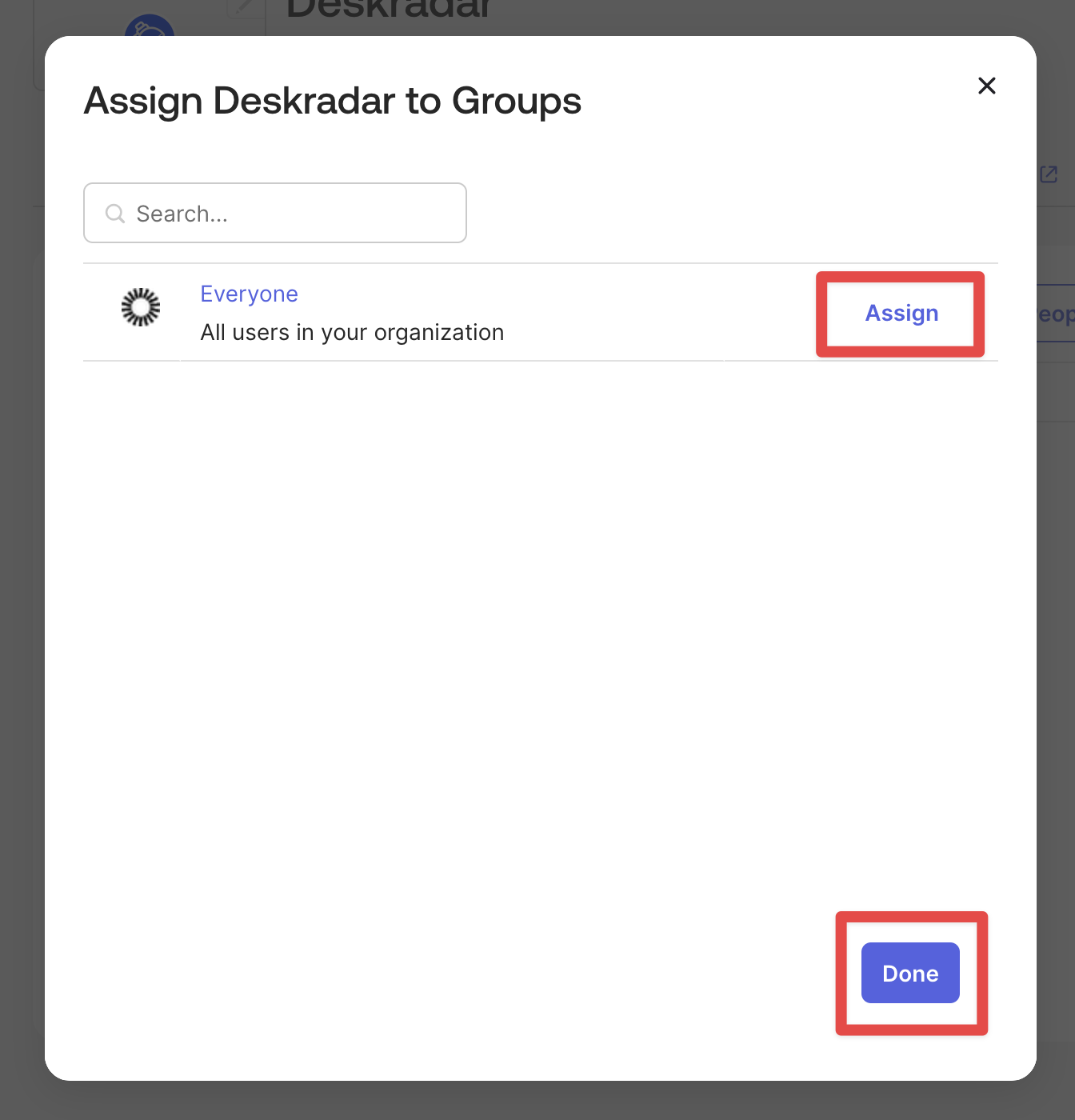
Click Assign on the Everyone row to allow all users in your organization to sign in to Deskradar with their Okta accounts. Select a different group to restrict access to that group only.
Click Done.
Deskradar configuration
Log in to your Deskradar workspace with an administrator account using your email and password.
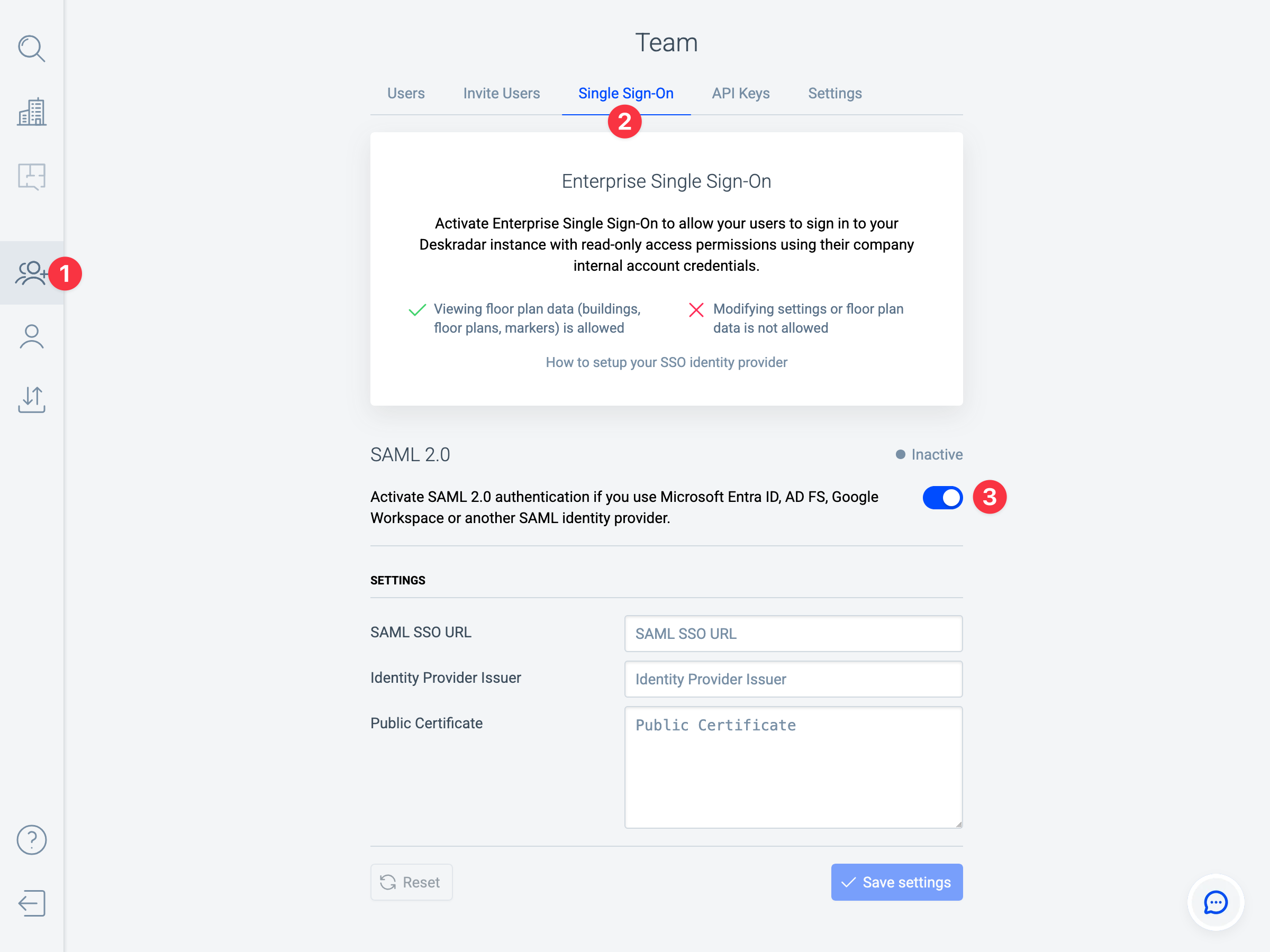
- Open the Team page by clicking the icon in the Sidebar.
- Switch to the Single Sign-On tab.
- Enable the SAML 2.0 authentication method.
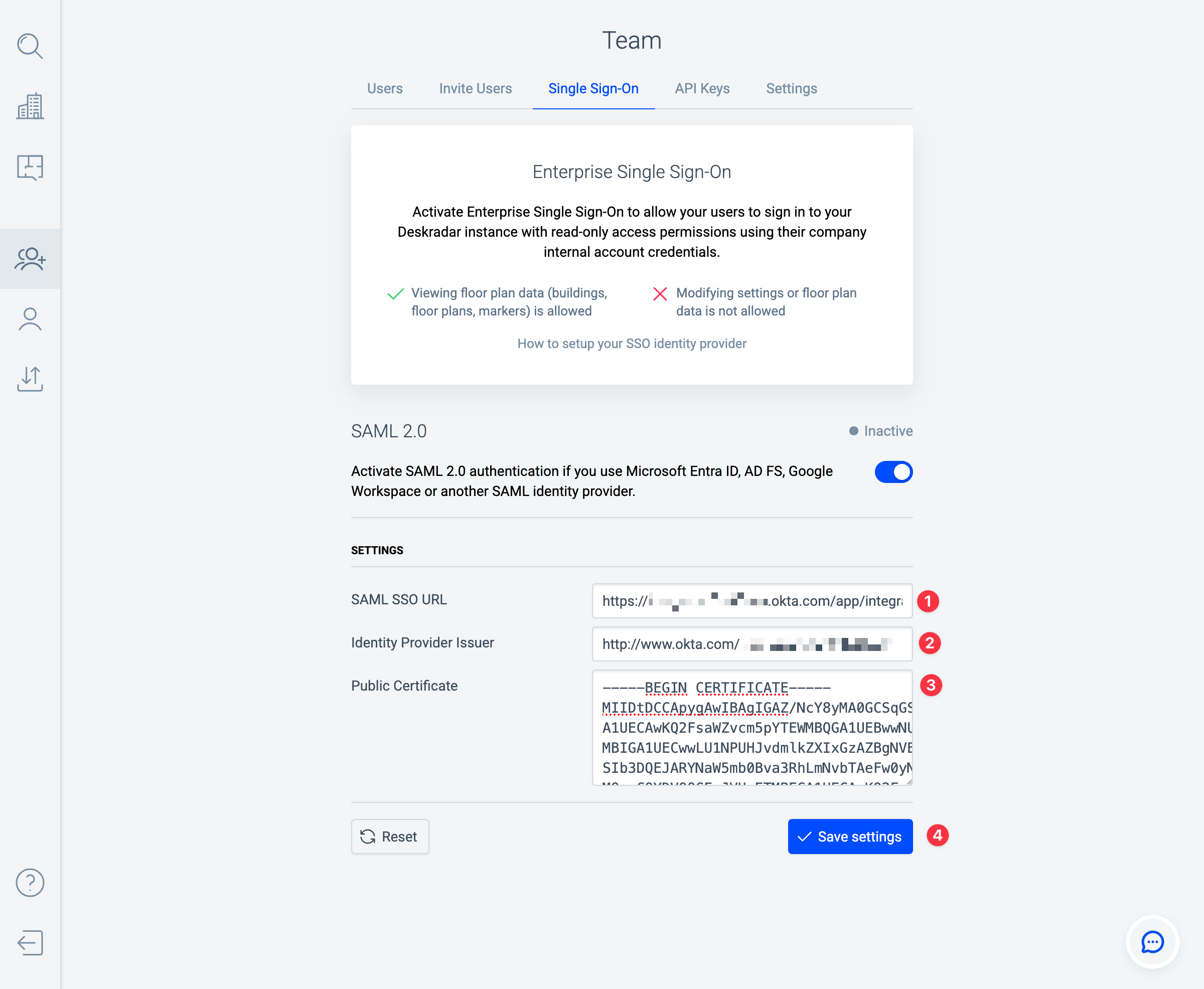
- In the SAML SSO URL field, enter the value you obtained from Sign on URL in the Okta user interface. The value starts with
https://<your-org-id>.okta.com/... - In the Identity Provider Issuer field, enter the value you obtained from Issuer in the Okta user interface. The value starts with
https://www.okta.com/... - Open the Certificate file you downloaded from Okta in a text editor, then copy and paste its contents into Public Certificate. The value starts with
-----BEGIN CERTIFICATE----- - Click Save settings.
Sign in to Deskradar with SSO
After configuration is complete, users can sign in to Deskradar using their Okta account.
Sign in from Deskradar
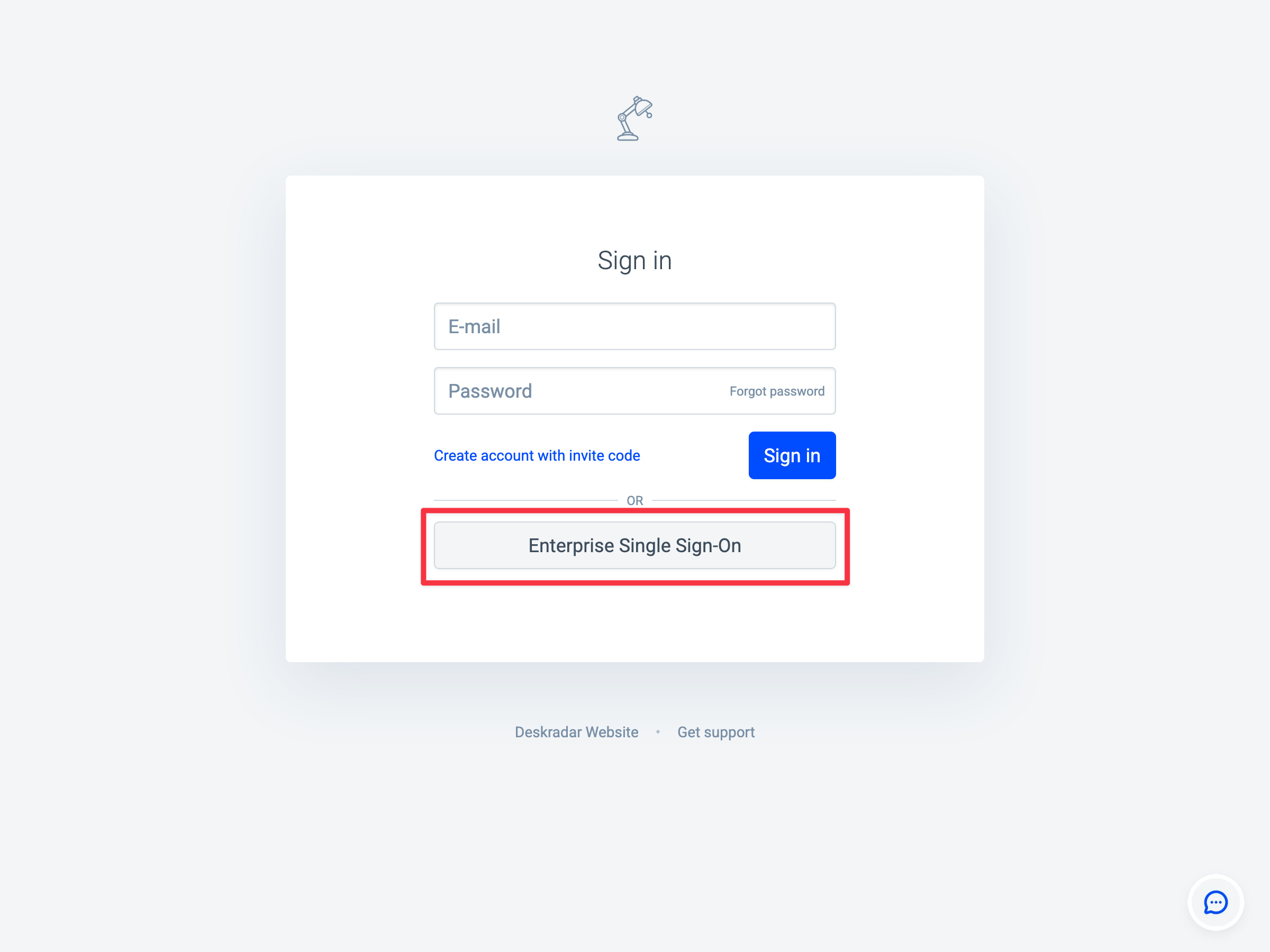
Launch your Deskradar instance by opening this URL in your browser: https://YOURDOMAIN.deskradar.cloud (replace YOURDOMAIN with your Deskradar instance domain). Click Enterprise Single Sign-On.
- You will be signed in to Deskradar directly if you’re already signed in on Okta.
- You will be redirected to the Okta sign-in form if you’re not signed in yet. Enter your work account credentials there to sign in.
- Upon successful sign-in with your work account credentials, you will be taken back to Deskradar and signed in.
Launch Deskradar from the Okta apps dashboard
You can access Deskradar from the Okta My Apps dashboard.