Appearance
Single Sign-On with Microsoft Entra ID
This guide demonstrates how to configure single sign-on with Microsoft Entra ID.
Microsoft Entra ID configuration
Add Deskradar Enterprise Application
Log in to Microsoft Entra ID.
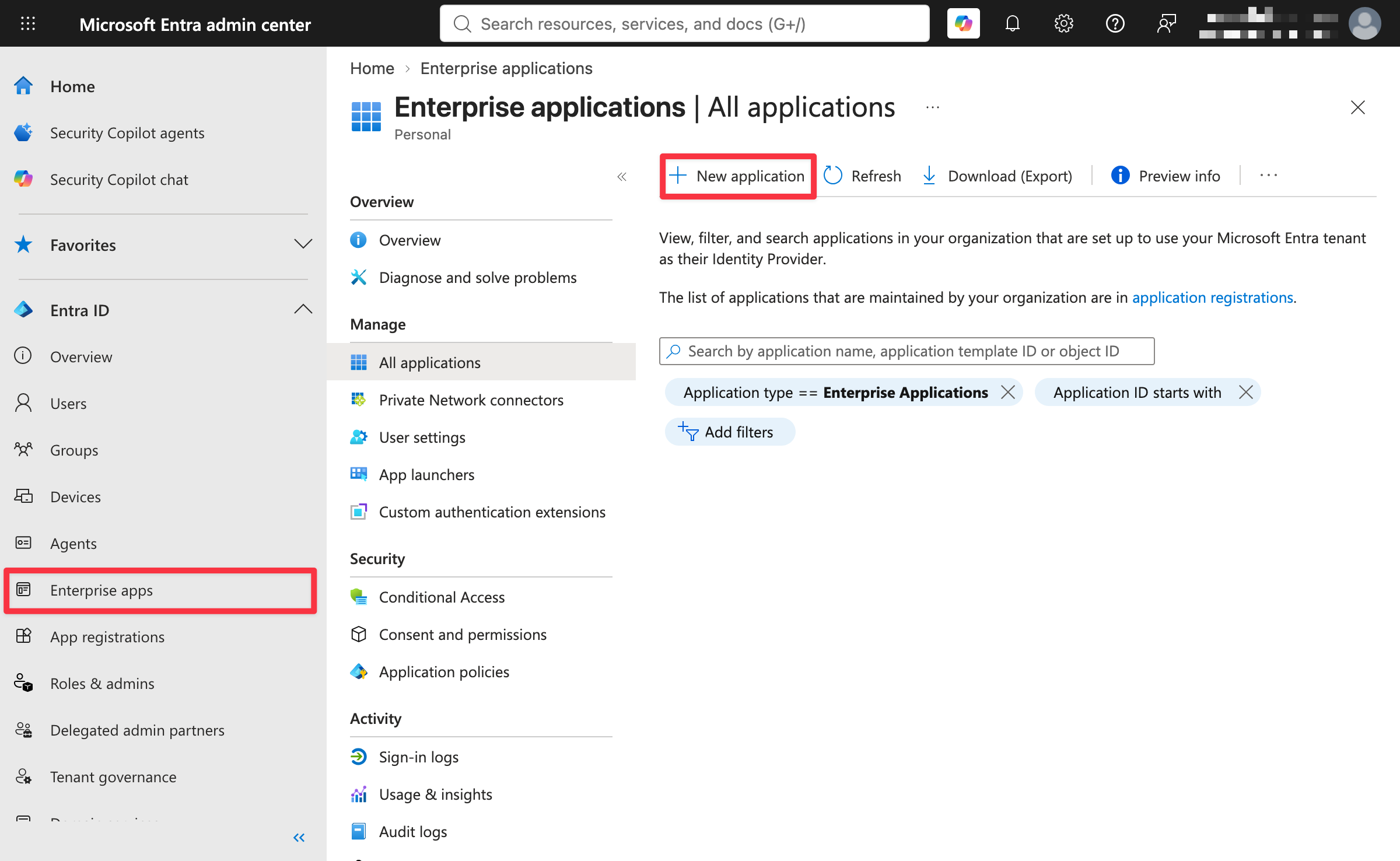
Click Enterprise apps in the navigation panel.
Click New application in the main content area.
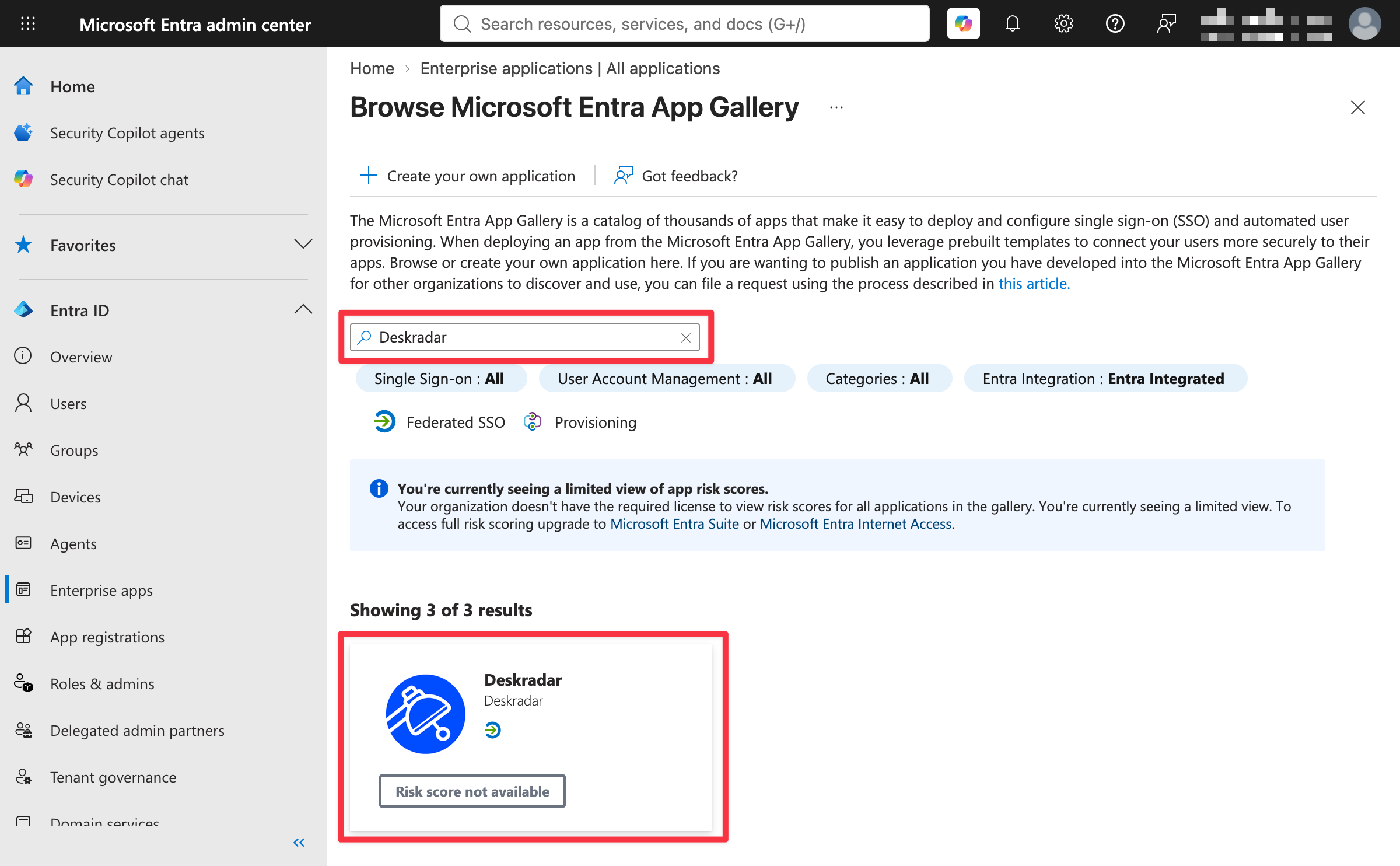
Search for “Deskradar” in the App Gallery, then click the Deskradar tile.
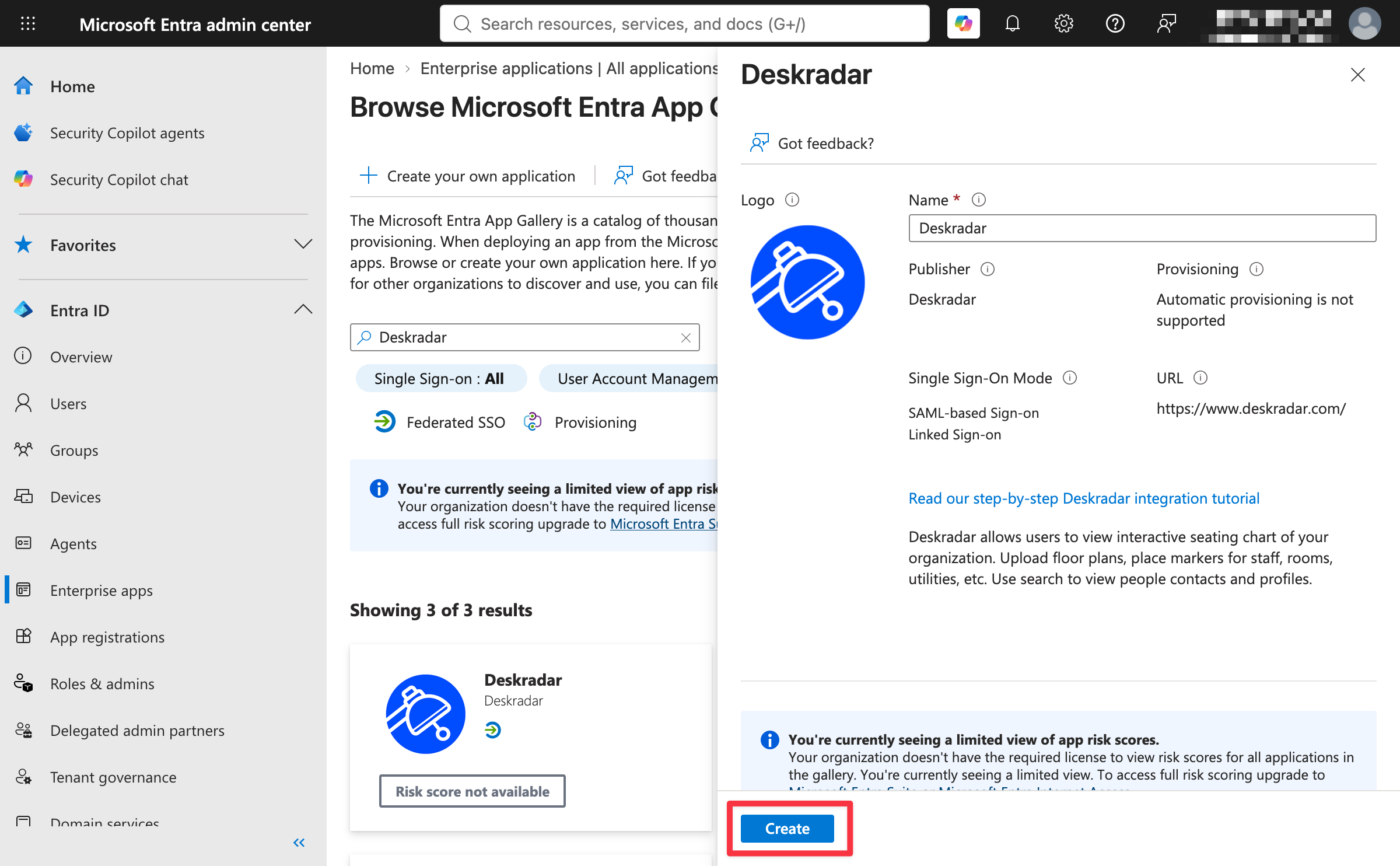
Click Create.
Set up SAML sign-on method
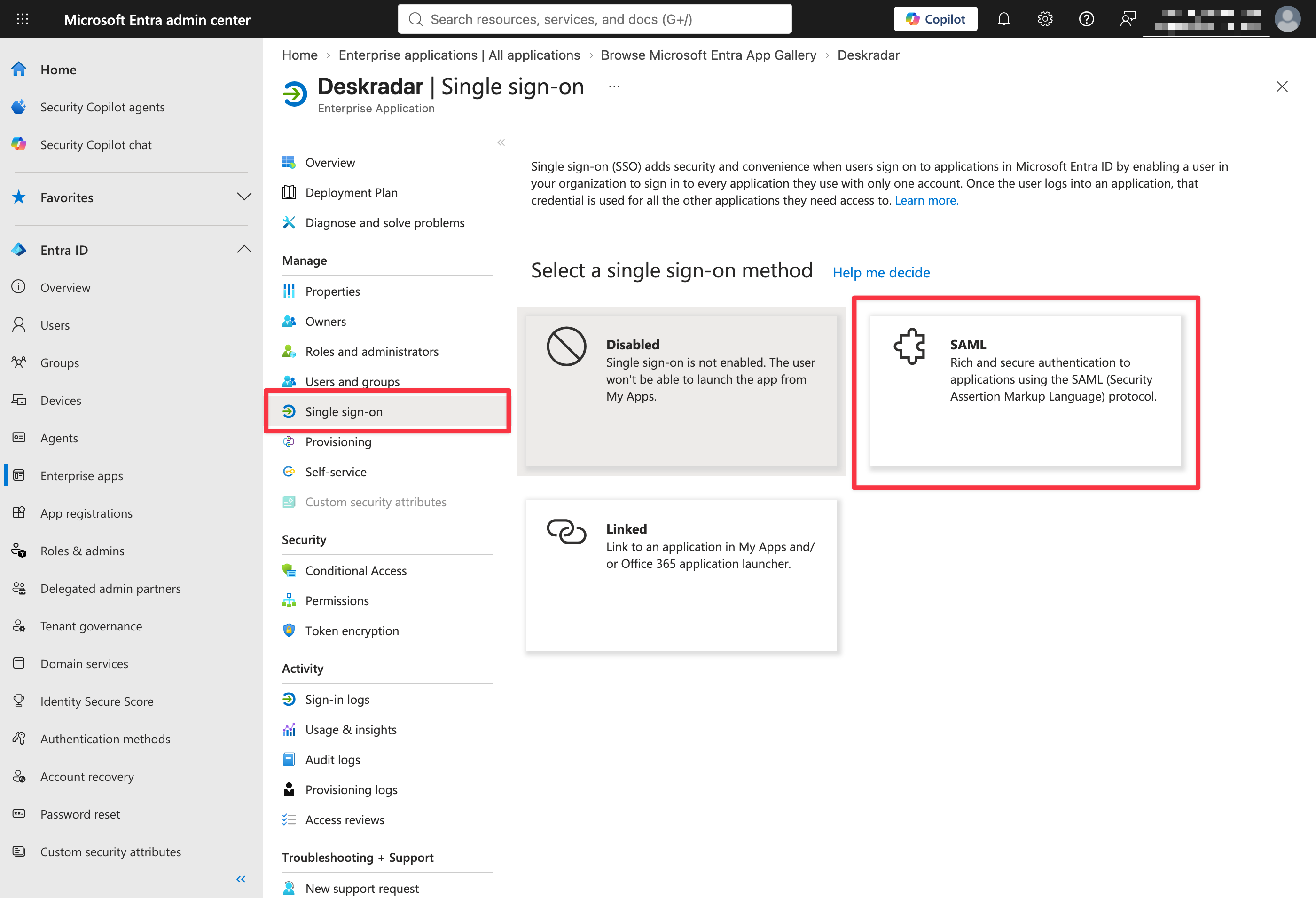
In the application navigation, click Single sign-on.
Select SAML as the single sign-on method.
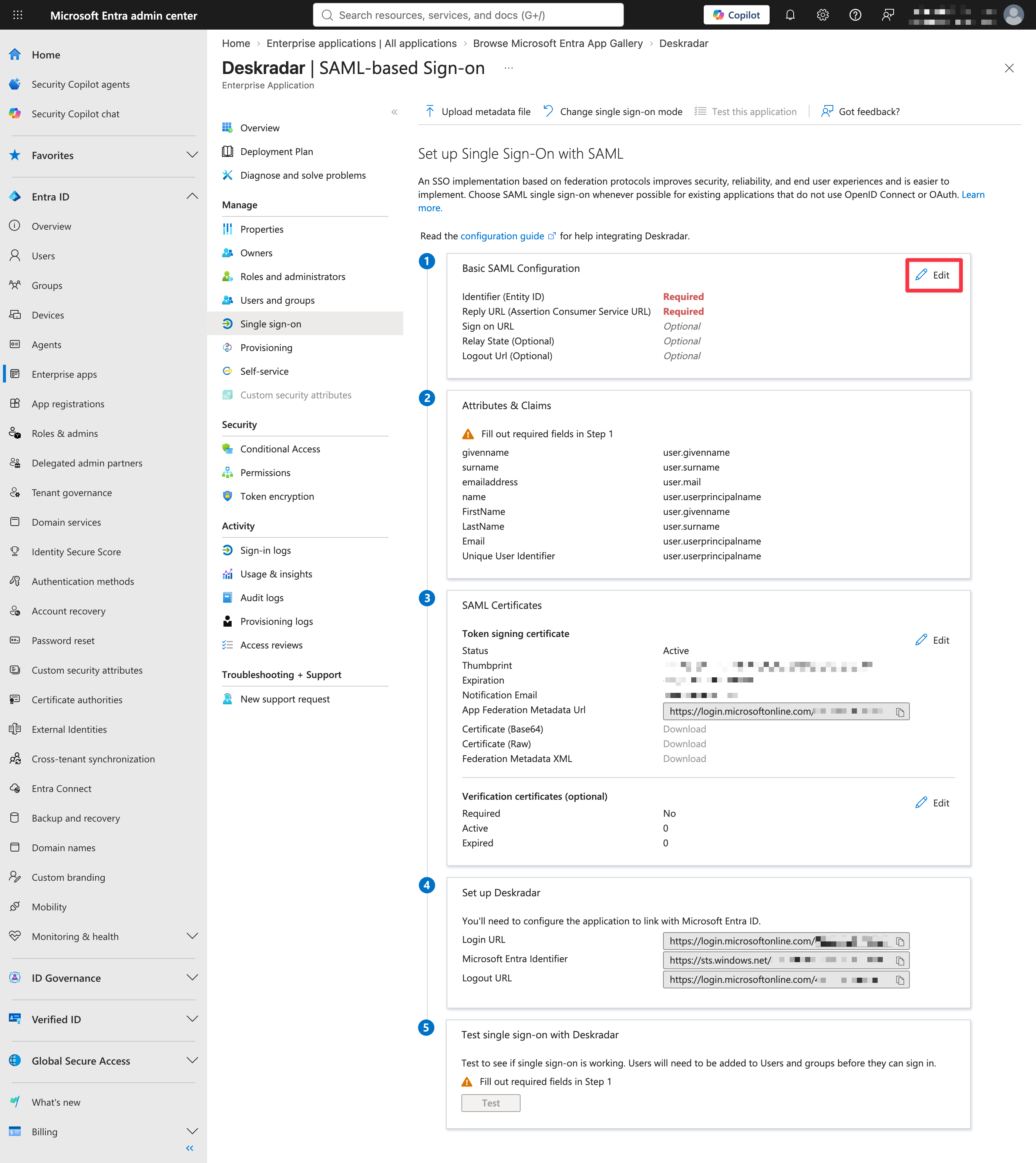
Click Edit in the Basic SAML Configuration box.
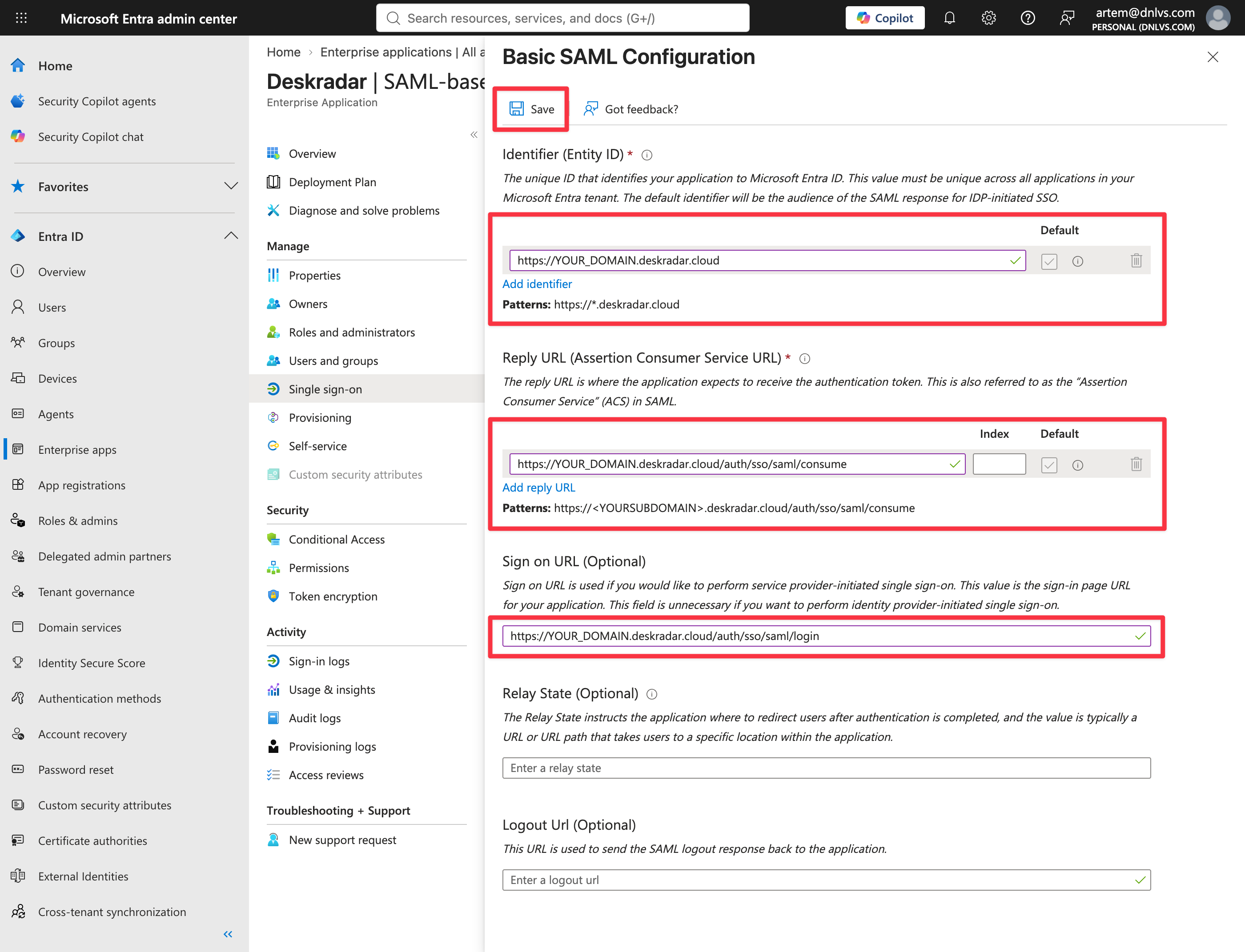
In the following values, replace YOUR_DOMAIN with your Deskradar instance domain.
In the Identifier (Entity ID) field, enter https://YOUR_DOMAIN.deskradar.cloud
In the Reply URL (Assertion Consumer Service URL) field, enter https://YOUR_DOMAIN.deskradar.cloud/auth/sso/saml/consume
In the Sign on URL field, enter https://YOUR_DOMAIN.deskradar.cloud/auth/sso/saml/login
Leave the Relay State and Logout Url fields empty.
Click Save, then close the panel.
Identity provider data
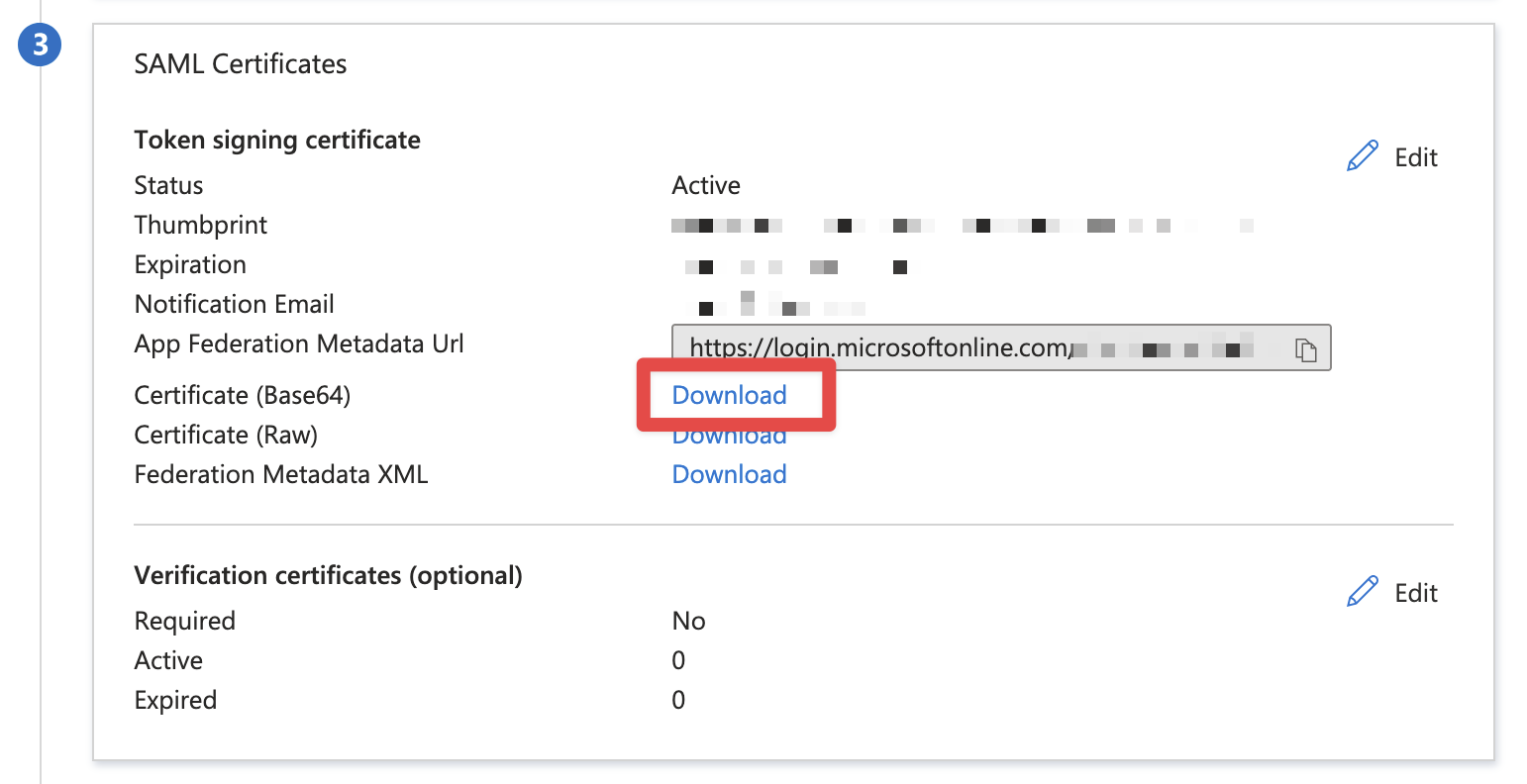
Scroll to the SAML Signing Certificate section. Download Certificate (Base64).
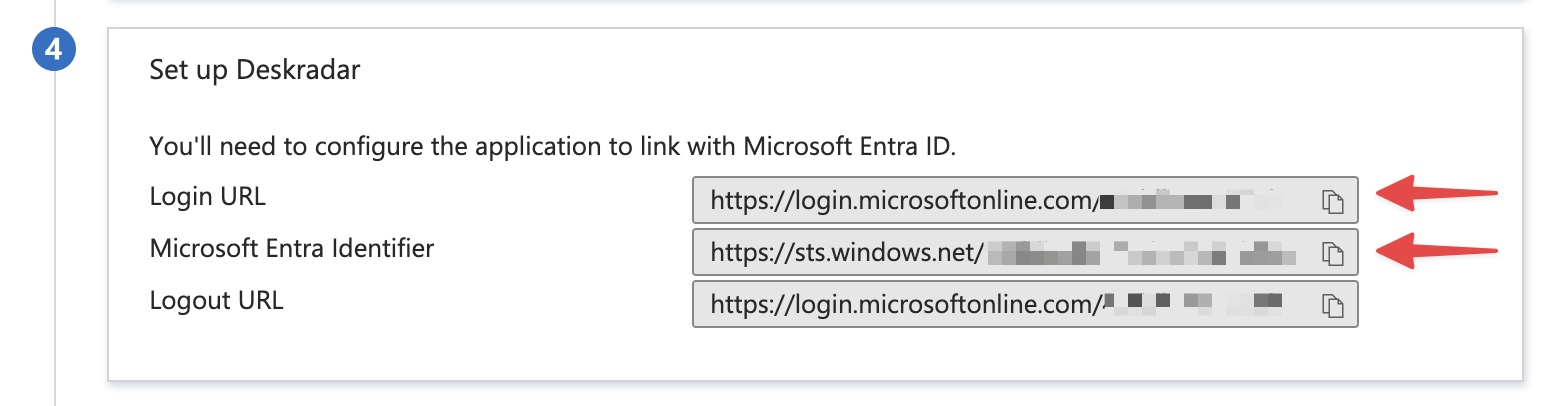
Scroll to the Set up Deskradar section. During Deskradar SSO setup, you will need the values of the Login URL and Microsoft Entra Identifier fields.
Set up user access
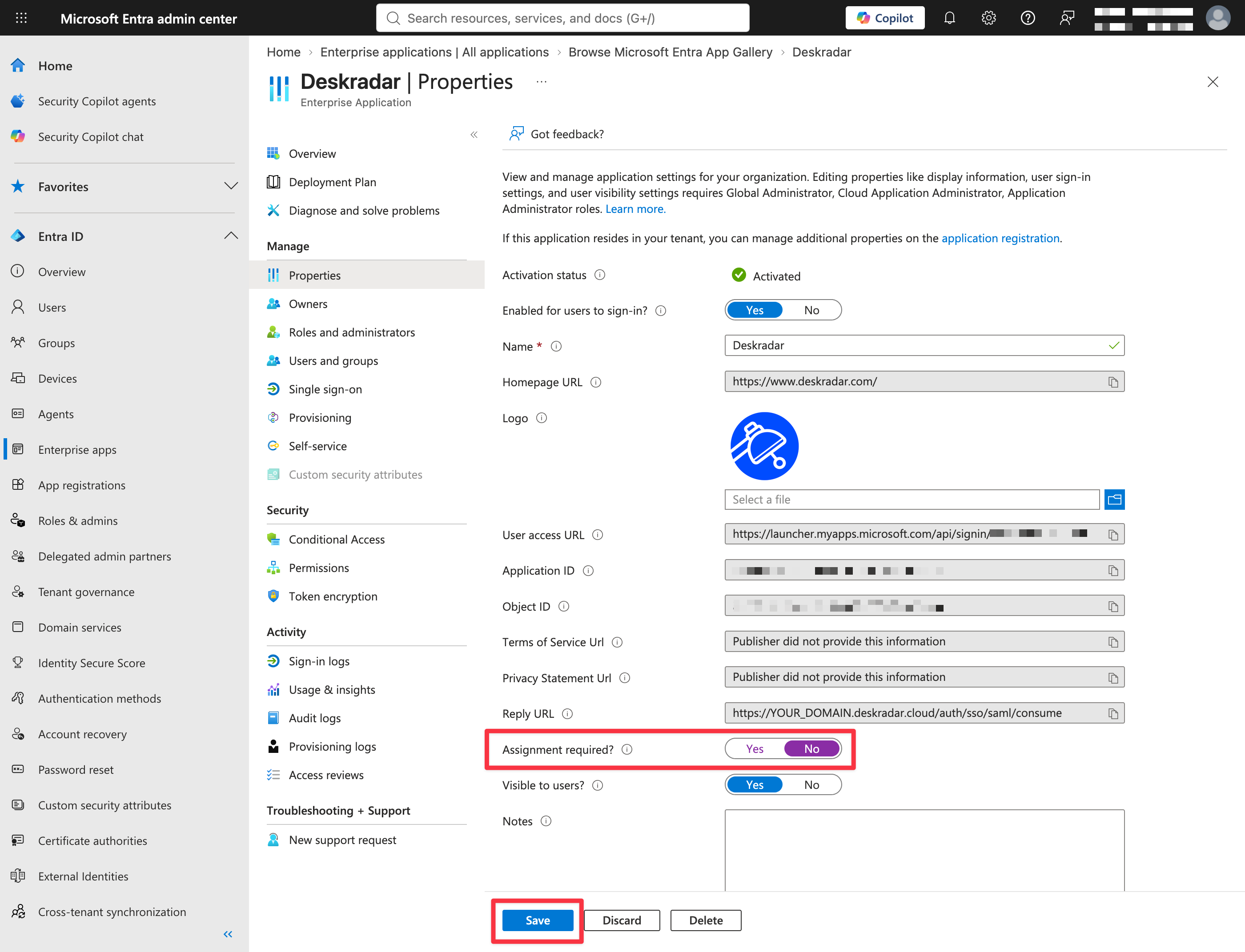
You can disable the User assignment required setting if you’d like all your users to be able to access Deskradar.
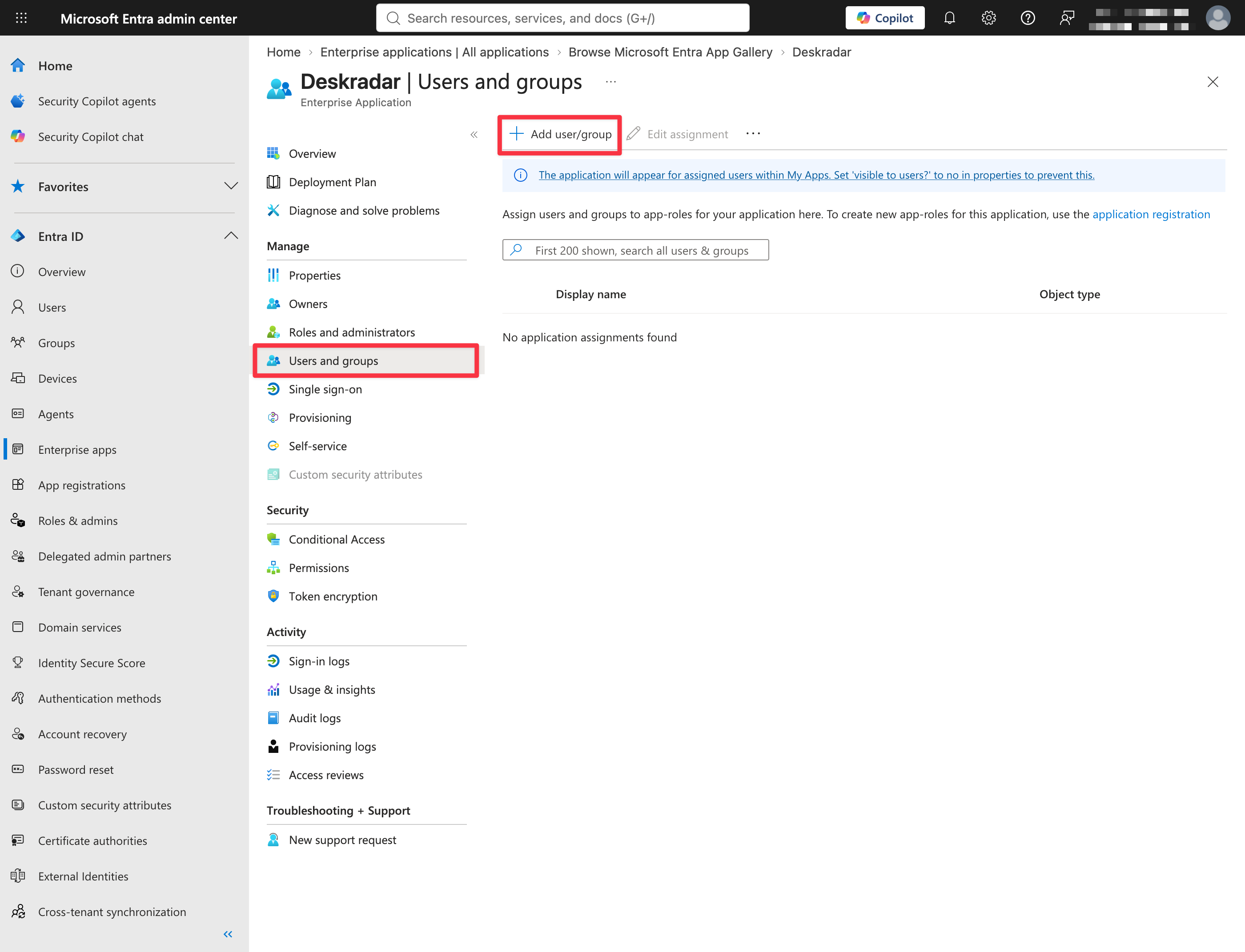
Alternatively, you can assign users and groups to the Deskradar application to have more control over who has access. Click Users and groups, then Add user/group to add the users and groups you’d like to give access to Deskradar via single sign-on.
Deskradar configuration
Log in to your Deskradar workspace with an administrator account using your email and password.
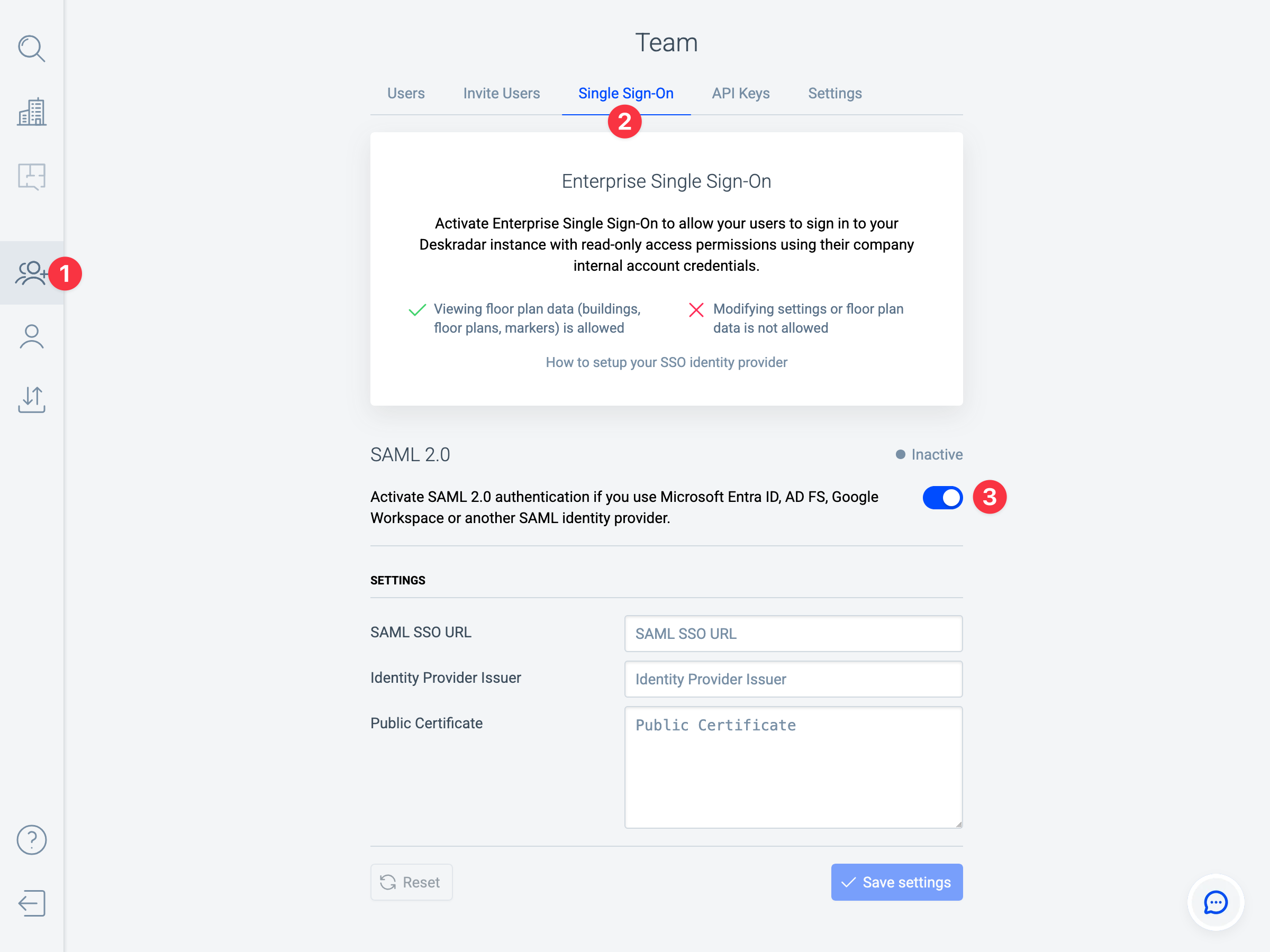
- Open the Team page by clicking the icon in the Sidebar.
- Switch to the Single Sign-On tab.
- Enable the SAML 2.0 authentication method.
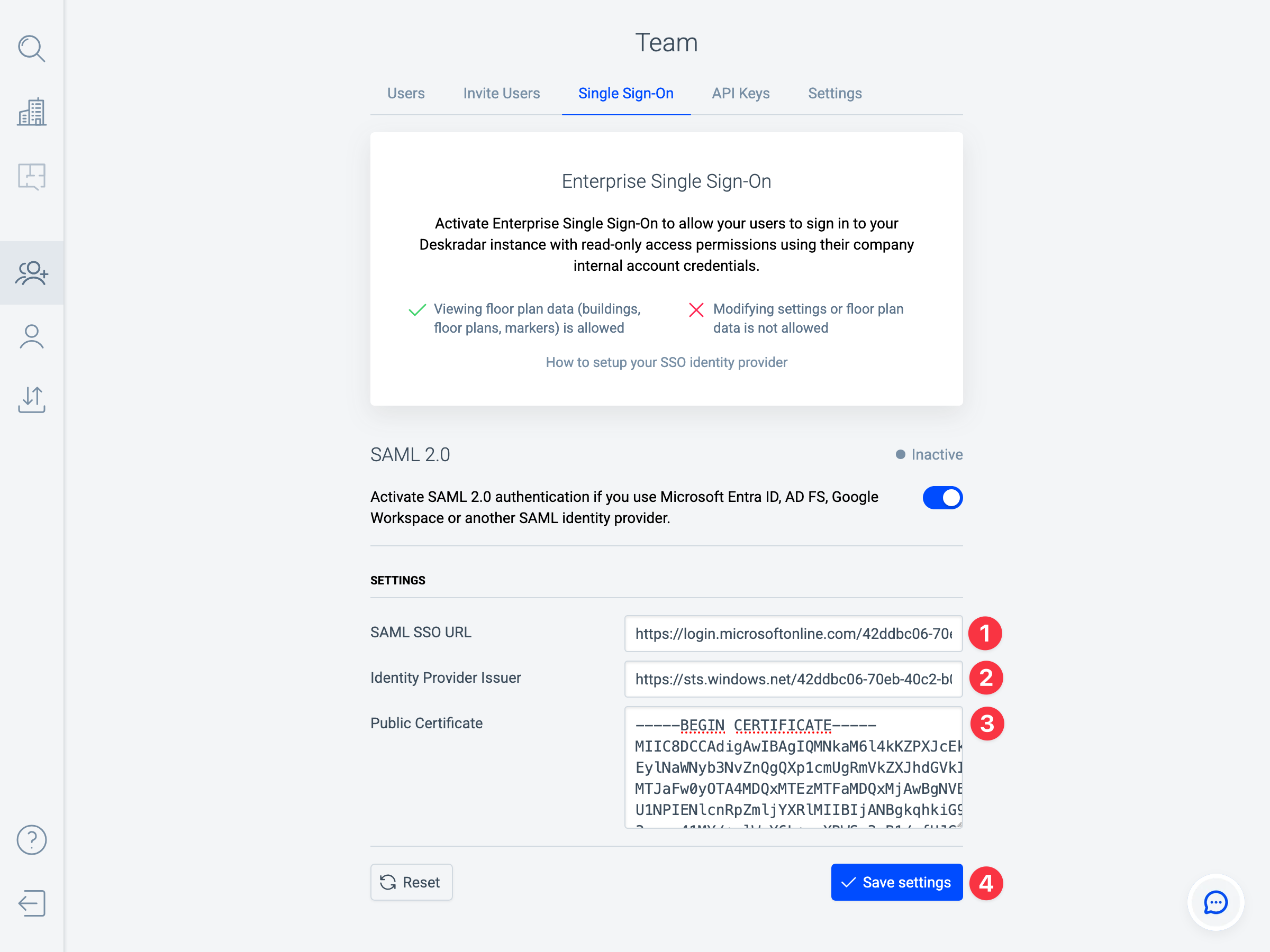
- In the SAML SSO URL field, enter the value you obtained from Login URL in the Microsoft Entra user interface. The value starts with
https://login.microsoftonline.com/... - In the Identity Provider Issuer field, enter the value you obtained from Microsoft Entra Identifier in the Microsoft Entra user interface. The value starts with
https://sts.windows.net/... - Open the Certificate (Base64) file in a text editor, then copy and paste its contents into Public Certificate.
- Click Save settings.
Sign in to Deskradar with SSO
After configuration is complete, users can sign in to Deskradar using their Microsoft work account.
Sign in from Deskradar
Launch your Deskradar instance by opening this URL in your browser: https://YOUR_DOMAIN.deskradar.cloud (replace YOUR_DOMAIN with your Deskradar instance domain). Click Enterprise Single Sign-On.
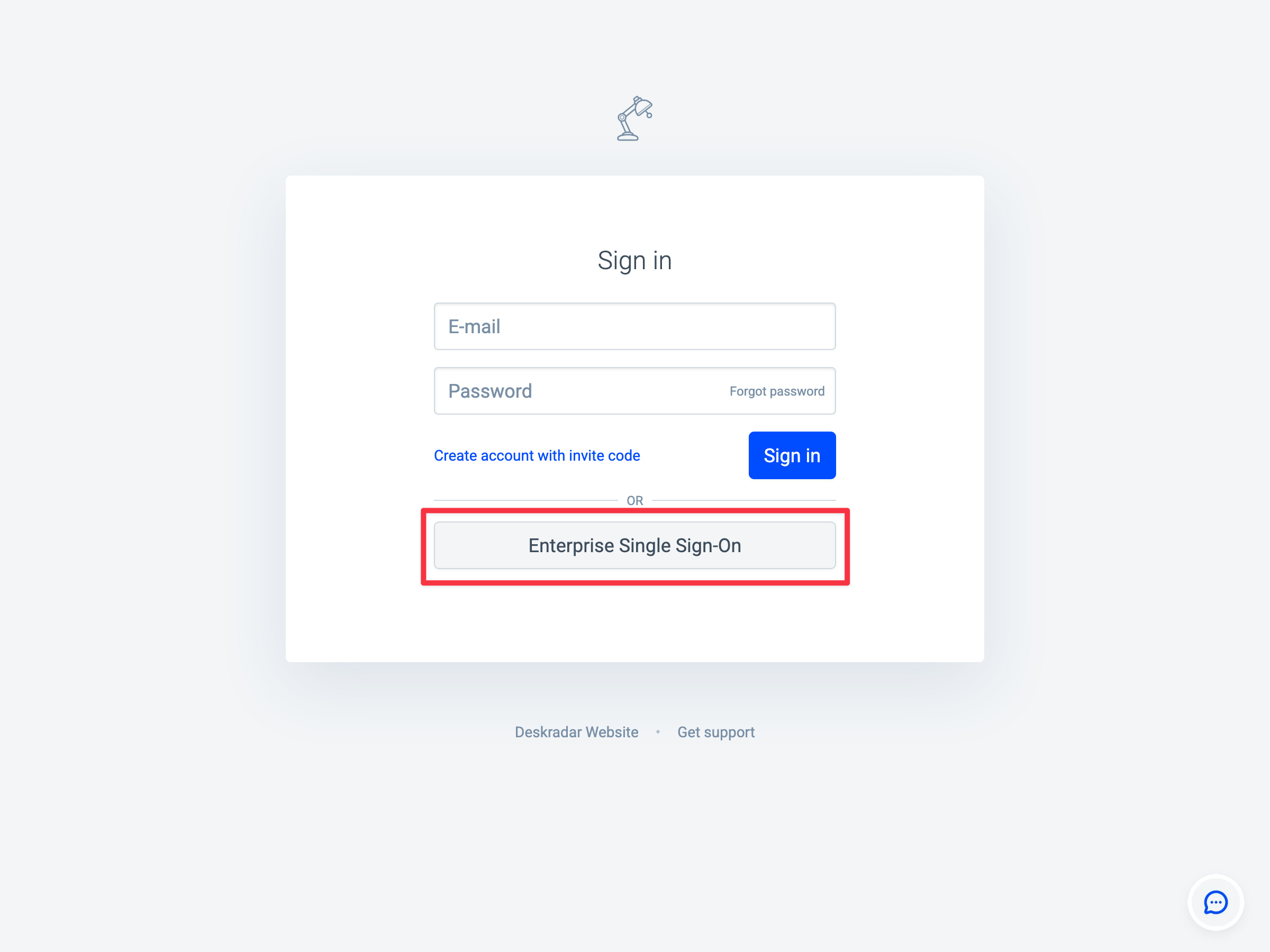
- You will be signed in to Deskradar directly if you’re already signed in on Microsoft.
- You will be redirected to the Microsoft sign-in form if you’re not signed in yet. Enter your work account credentials there to sign in.
- Upon successful sign-in with your work account credentials, you will be taken back to Deskradar and signed in.
Launch Deskradar from the My Apps portal
You can access Deskradar from the Microsoft My Apps portal: https://myapps.microsoft.com